
 Jules Samuel
Written by: Jules Samuel
Going live on Instagram has become one of the most effective ways to connect with your audience in real-time, whether you’re a content creator, business owner, or simply want to share moments with friends. This comprehensive guide walks you through every step of the live streaming process, from meeting the basic requirements to setting up professional broadcasts from your phone or PC. Mastering Instagram Live opens doors to authentic engagement, instant feedback, and building stronger relationships with your followers through interactive video content.
Requirements before going live on Instagram
Before you start your first Instagram live session, you need to meet specific requirements to access this popular streaming feature. Understanding these prerequisites will save you time and help you prepare for a successful broadcast.
Your Instagram account must be at least 30 days old to unlock the live streaming capability. This policy prevents spam and promotes authentic engagement on the platform. Both personal and business accounts can access Instagram Live, but professional accounts offer additional features like advanced analytics and scheduling options.
The Instagram mobile app remains the primary gateway for going live. You’ll need either an iPhone running iOS 10 or later, or an Android device with version 4.1 or higher. The app automatically saves your live archive for 30 days, allowing you to download or share clips afterward.
For PC streaming using third-party software, you must convert your account to a professional (Creator or Business) profile. This unlocks streaming keys needed for external broadcasting tools. Professional accounts also provide access to practice mode, where you can test your setup before going public.
| Account Type | Live Features Available | PC Streaming |
| Personal (30+ days) | Basic live streaming, comments, guests | No |
| Professional | All features + scheduling, analytics | Yes |
Your internet connection should provide sufficient upload speed for smooth video quality. Mobile data works, but Wi-Fi offers more stability for longer streams.
How to go live on Instagram from your phone
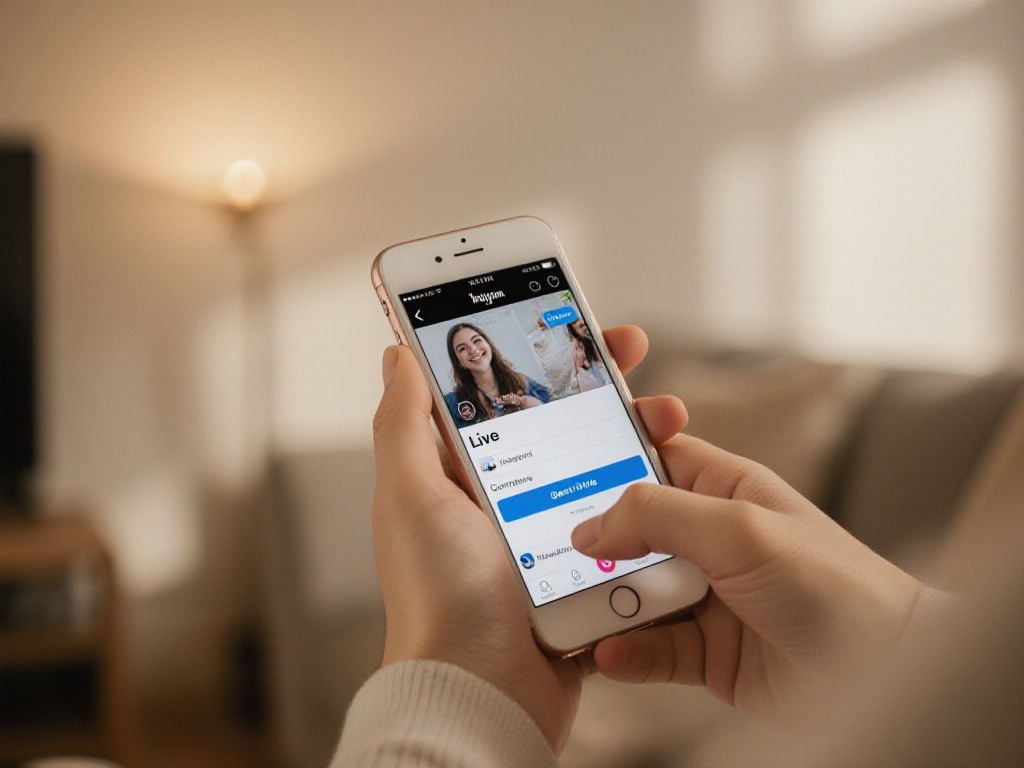
Going live on Instagram from your phone is straightforward and takes just a few taps. Here’s the complete step-by-step process to start your live video on your Instagram account:
-
Open Instagram on your iPhone or Android.
-
Swipe right from your home feed or tap the camera icon in the top-left corner.
-
At the bottom, swipe to “Live.”
-
Tap the settings icon to add a title for your stream.
-
Check how many followers are online at the top of the screen.
-
Tap the record button to start your live broadcast.
-
Engage with viewers via comments or invite a guest using the wave icon.
-
When finished, tap “End” in the top-right corner.
-
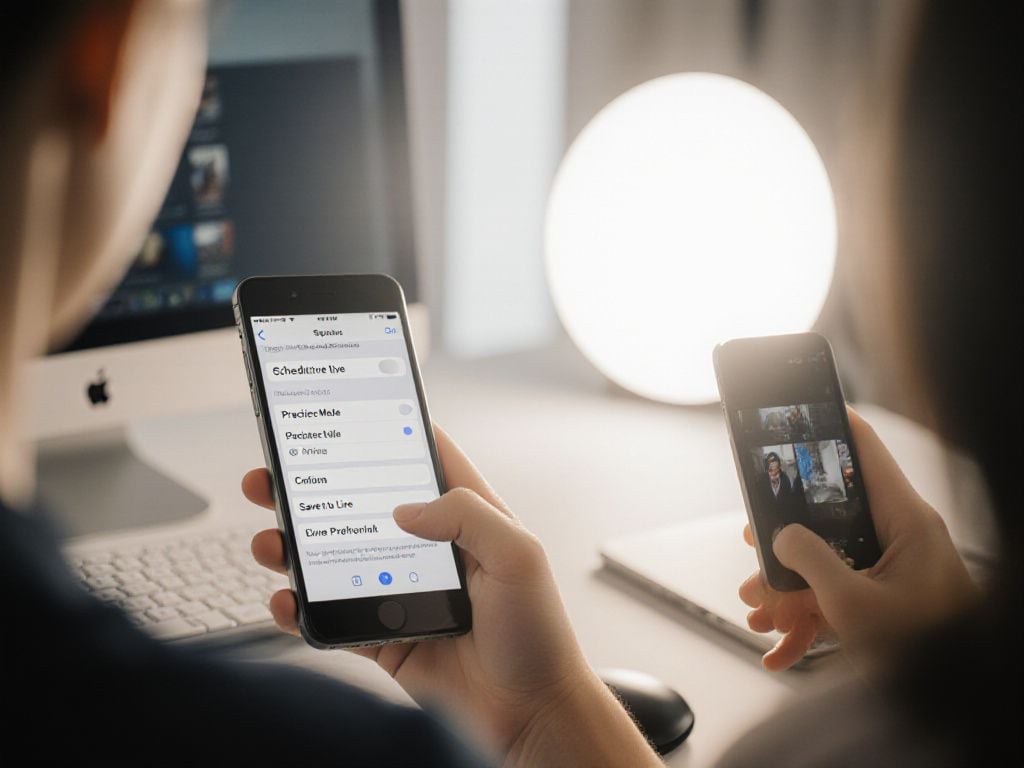
Choose to share the replay, save it as a Reel, or use Practice mode to test privately.
How to go live on Instagram from a PC using streaming software
Going live on Instagram from your PC requires a Professional account and third-party streaming software like OBS Studio, Streamlabs, or Riverside. This method gives you access to professional features like multiple cameras, screen sharing, and advanced audio controls.
Start by switching to a Professional account in your Instagram settings. Next, download and install your preferred streaming software. Popular options include:
- OBS Studio (free and powerful)
- Streamlabs (user-friendly interface)
- Riverside (cloud-based solution)
- XSplit (professional features)
To begin streaming, open Instagram on your desktop browser and click the Create button, then select Live video. Add your stream title and choose your audience. Click Next to reveal your custom RTMP stream details.
Copy the stream key and paste it into your streaming software settings. Configure your camera and microphone within the software – this is where you can connect external webcams, professional microphones, or multiple video sources for a polished look.
Pro tip: Test your setup using Instagram’s Practice mode before going live to your audience.
Once everything is configured, click the Start Streaming button in your software, then hit Go Live on Instagram. Your stream will appear on your profile and in your followers’ feeds. To stop streaming, simply click the stop button in your streaming software first, then end the session on Instagram.
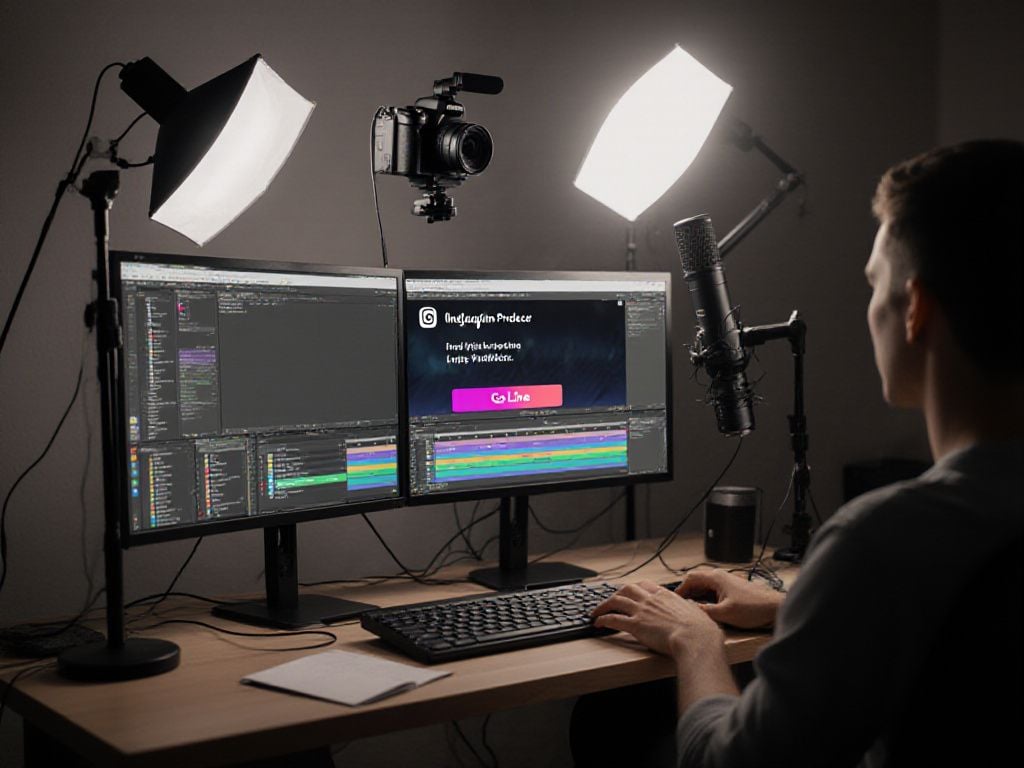
Recommended gear to improve your Instagram Live quality
Quality gear can transform your Instagram Live sessions from basic streams to professional broadcasts that keep viewers engaged. While you can start with just your phone, investing in the right equipment will significantly boost your video and audio quality.
Webcams for desktop streaming make a huge difference when going live from your PC. The Insta360 Link 2 offers 4K video with smart tracking features, automatically keeping you in frame as you move. For budget-conscious creators, the Insta360 Link 2C provides excellent 1080p quality with the same AI-powered features at a more affordable price point.
| Equipment Type | Benefits | Best For |
| External Microphones | Clear audio, reduced background noise | All streaming setups |
| Ring Lights | Even lighting, eliminates shadows | Indoor streaming |
| Phone Tripods | Stable footage, hands-free operation | Mobile streaming |
Good lighting equipment like ring lights or softboxes creates professional-looking streams even in dim environments. A sturdy tripod prevents shaky footage that can cause viewers to leave your stream early.
Professional-quality streams see significantly higher viewer retention rates compared to basic phone recordings.
Most gear works seamlessly with both mobile and desktop setups, giving you flexibility in how you broadcast your Instagram Live sessions.
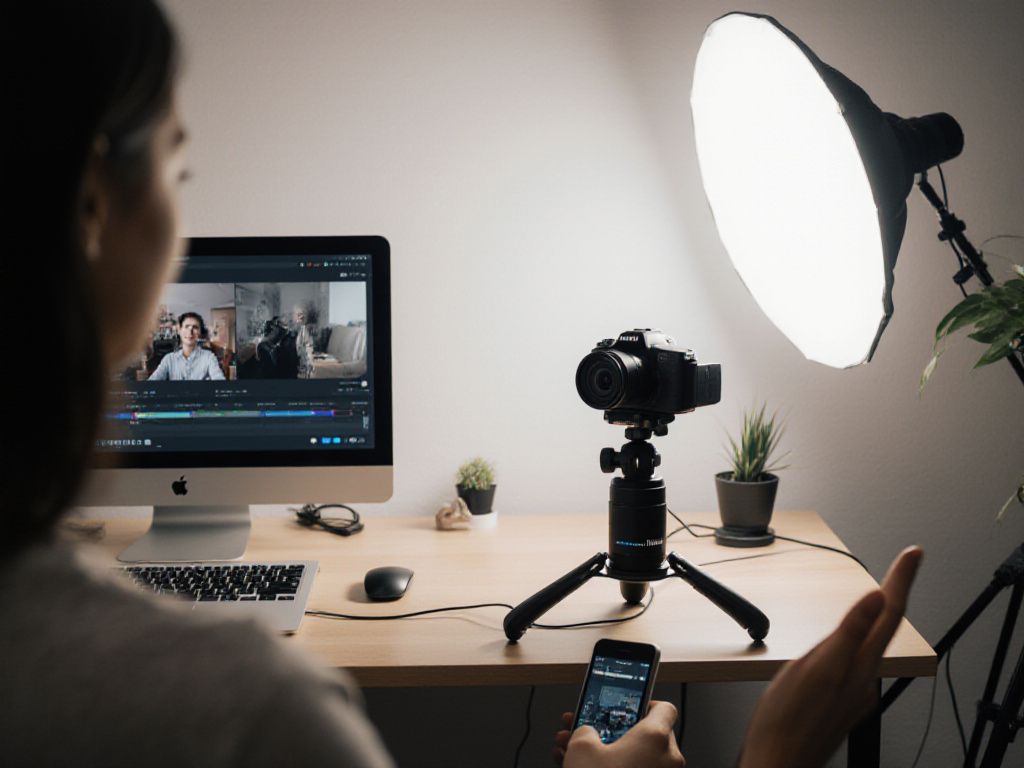
Tips and tricks to make your Instagram Live more engaging
Going live on Instagram successfully requires more than just hitting the broadcast button. Interactive engagement forms the foundation of memorable live sessions that keep viewers watching and coming back for more.
Start your stream with energy and acknowledge viewers by name as they join. This personal touch makes people feel valued and encourages others to participate. Ask direct questions throughout your broadcast to spark comments and create a two-way conversation rather than a one-sided presentation.
- Use polls and question stickers during your live video to gather instant feedback
- Share behind-the-scenes content that followers can’t see elsewhere
- Respond to comments in real time to maintain viewer interest
- Create interactive segments like Q&A sessions or tutorials
Keep your content dynamic by varying your activities every 5-10 minutes. Switch between talking directly to the camera, demonstrating products, or showing different angles of your workspace. This prevents monotony and maintains visual interest.
| Engagement Strategy | Best Time to Use | Expected Result |
| Name mentions | Throughout stream | Personal connection |
| Question prompts | Every 3-5 minutes | Active participation |
| Content variety | Every 10 minutes | Sustained attention |
The key to successful live streaming is treating your audience like friends in your living room, not strangers watching through a screen.
After your live session ends, save the video and transform highlights into Instagram Reels or Stories. This extends your content’s lifespan and reaches followers who missed the original broadcast.
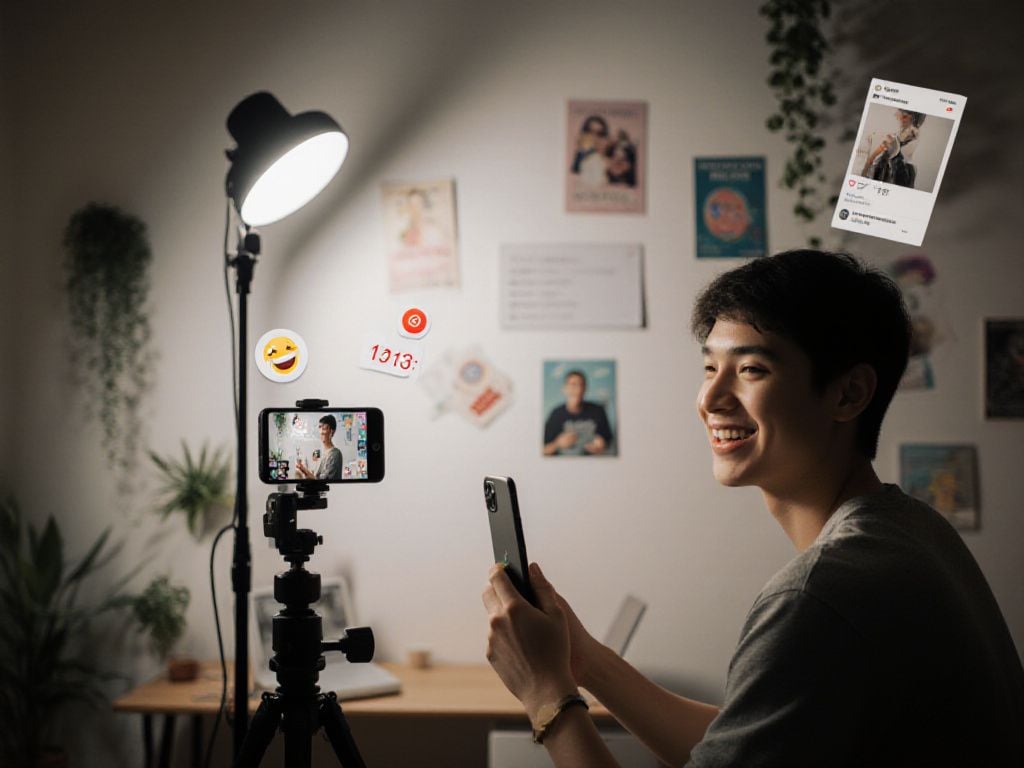
How to promote your Instagram Live for maximum reach
Building anticipation for your Instagram Live session can dramatically increase your viewership and engagement. The key is to create buzz before you go live and make your audience excited to join you.
Instagram Stories are your best friend when promoting upcoming live sessions. Post eye-catching story content announcing your live date and time, and use countdown stickers to build excitement. These stickers send automatic reminders to followers who tap them, making it easy for your audience to remember your stream.
- Share teaser content about what you’ll discuss during your live session
- Post behind-the-scenes content to build curiosity
- Use polls and question stickers to gather topics from your audience
- Create visually appealing graphics with your live session details
Cross-promotion across other social media platforms expands your reach beyond Instagram. Share your live announcement on Facebook, Twitter, TikTok, and YouTube to attract viewers from different networks.
Collaboration with other creators can double your audience reach when you co-host or guest on each other’s live sessions.
Direct messages work wonders for reaching your most engaged followers. Send personalized invitations to loyal fans, regular commenters, and close connections. This personal touch makes people feel special and more likely to attend.
| Promotion Method | Best Timing | Expected Reach Increase |
| Instagram Stories with countdown | 24-48 hours before | – |
| Cross-platform sharing | 1-3 days before | – |
| Direct messages | 2-6 hours before | – |
Troubleshooting common Instagram Live issues
When trying to go live on Instagram, you might encounter several technical challenges. Understanding these common problems and their solutions will help you start streaming smoothly.
Account eligibility issues often prevent new users from accessing live streaming. Your Instagram account must be at least 30 days old to go live. If you’re still unable to stream, switch to a Professional account through your settings, which can unlock additional features, including live video capabilities.
Connection problems frequently interrupt live streaming sessions. Check your internet connection strength before going live – you need sufficient upload speed for stable streaming. Close other apps running in the background to free up bandwidth and processing power.
App permission errors can block your camera or microphone access. Navigate to your device settings and grant Instagram full permissions for camera, microphone, and storage. Update your Instagram app to the latest version, as older versions may have compatibility issues.
Third-party streaming software problems occur when using a PC setup. Double-check your stream key in Instagram’s Professional Dashboard and copy it exactly into your streaming software. Restart both Instagram and your streaming application if the connection fails.
Many technical issues stem from outdated apps or insufficient internet bandwidth. Regular updates and speed tests can prevent most streaming problems.
If problems persist, try logging out and back into your Instagram account, or restart your device completely. These simple steps resolve most technical glitches affecting live streaming functionality.
Conclusion
Going live on Instagram transforms how you connect with your audience through real-time interaction and authentic content sharing. From basic phone streaming to professional PC setups, the right preparation and engagement strategies create memorable broadcasts. As live video continues dominating social media, mastering these techniques positions you for greater reach and meaningful connections with your community.
Frequently Asked Questions
What are the steps to start a live broadcast on Instagram?
Open the Instagram app and tap the create button. From there, you’ll see various posting options including the live streaming feature. Select the live option to begin your broadcast and connect with your audience in real-time.
What prevents me from starting a live stream on Instagram?
You may be unable to go live on Instagram due to several factors:
- Not having a public account with at least 1,000 followers
- Account restrictions from community guideline violations
- Poor internet connection or missing app permissions
- App bugs requiring updates or cache clearing
What’s the minimum follower count required for Instagram Live?
Instagram requires a minimum of 1,000 followers and a public account to access the live streaming feature. This requirement was introduced to enhance content quality and prevent misuse, though it limits access for smaller content creators.
What requirements must I meet to access Instagram Live features?
To become eligible for Instagram Live, you need:
- A public account with at least 1,000 followers
- Camera and microphone permissions enabled
- Parental consent for users under 16 years old